File Upload
A File Upload step enables chat users to upload one or more files directly into the conversation, either by selecting the plus icon (+) or by dragging and dropping files into the chat window.
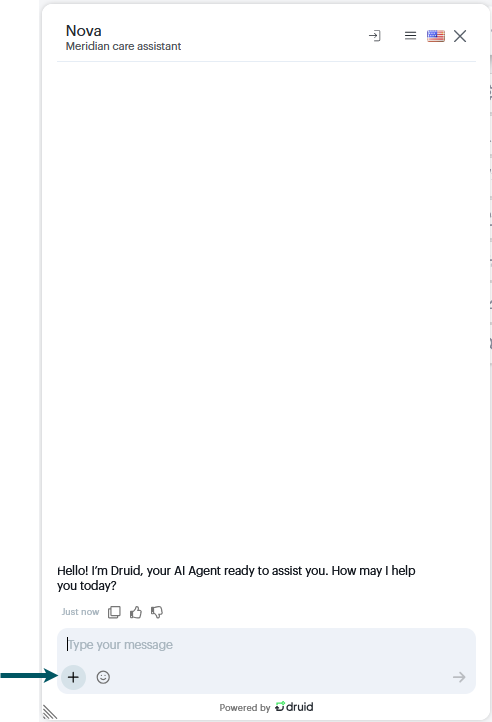
You can configure file restrictions, handle validation errors, and control how uploaded files are processed within the flow.
Use it for processes like document submission, identity verification, and other tasks requiring file handling.
Add and Configure File Upload Step
To add and configure a File Upload step in a flow:
- Open the desired flow in Flow Diagram view.
- Expand the Flow Palette, then drag the File Upload step from the Dialog category into the main flow window and drop it onto the step you want to link it to.
- Select the step on the diagram, then click the Settings icon from the Actions menu.
- Set the General parameters:
- Step name: Enter a descriptive name for the step to clarify its purpose (e.g., "Upload Identity Card"). This name is for internal use and helps you document the flow and understand analytics reports.
- Step message: Enter the message the AI Agent will display to the user when it reaches this step, like "Upload the file here".
-
Set file restrictions if you need to restrict the types of files users can upload.
-
Save the step.
Set File Restrictions
To restrict the types of files users can upload, click on the Metadata section and set the desired file restrictions:
- Allowed file types. Specify the supported file extensions separated by comma followed by a space (e.g., .pdf, .png, .jpg, .docx).
- Max allowed size (KB). Define the maximum allowed size per file in kilobytes.
Druid supported file extensions
Druid supports the following file extensions:
| png | mkv | |
| doc | jpg | webm |
| docx | jpeg | csv |
| xls | tiff | txt |
| xlsx | tif | json |
| odt | mp3 | vcf |
| ods | mp4 | xml (supported in DRUID 8.5 and higher) |
If a user attempts to upload an unsupported file type, the AI Agent will respond with a default or customized error message defined as set in the UploadFileFailed special message (AI Agent Details > Dialogue Management > Special messages).
File Type Priority Logic
Druid applies a hierarchy to determine which file types are accepted during an upload. The system checks the following levels in order and applies the first non-empty list it finds:
- Conversation level. If the step configuration is empty, the system looks for the [[ChatUser]].AllowedFileTypes variable assigned during the conversation flow.
- File Upload step level. The system first checks the Allowed file types defined in this step’s Metadata section.
- AI Agent level. If no restrictions are found at the step or conversation level, the global Allowed file types setting in the AI Agent Details page, General tab is applied.
- Lists are not combined. If a list is found at a higher priority level, the lower levels are completely ignored.
- If no file types are specified at any of the three levels, the system allows all supported file extensions by default.
- Allowed file type selection at AI Agent level is available starting with Druid 9.22.
File Validation and Anti-Malware Scanning
All uploaded files are automatically validated and scanned by the Druid anti-malware system before being processed.
If a file fails validation (for example, unsupported type or size), the system raises the exception [[SystemError]].ExceptionType == “UnsupportedFileType” which you can handle in the flow. For more information, see Exception Handling on Flow Steps with Input Mapping.
The system logs the event in Conversation History, including the file name (when available): "File <file name> was found corrupted by DRUID Antimalware system".
Multiple File Upload Behavior
When users upload multiple files in a single step, each file is processed independently. If a user uploads multiple files and only some are flagged as threats, the system will accept the clean files into the conversation context rather than rejecting the entire set.
- Clean files are accepted and added to the conversation context. Successfully uploaded files are available in the [[FileList]] collection.
- Rejected files trigger the exception [[SystemError]].ExceptionType == “UnsupportedFileUpload”.
- Rejected files are logged in the Conversation History.
 Related Topics